
Applying Overheads to Finished Goods
ENTERING OVERHEADS FOR A FORMULATION
Overheads can be entered from 2 separate menu options. It makes no difference to the final result which menu option is used.
1. MENU OPTION: Files > Finished Goods > Code/Name (Use this menu option when you wish to add overheads to newly created finished goods)
2. MENU OPTION: Costing > Finished Goods > Detailed > Code/Name (Use this menu option when you wish to add overheads to existing finished goods or where you wish to do 'What if' costing experiments)
Menu Option Files > Finished Goods > Code/Name
Click on the overheads drop-down menu option at the top of the bill of packaging entry screen.
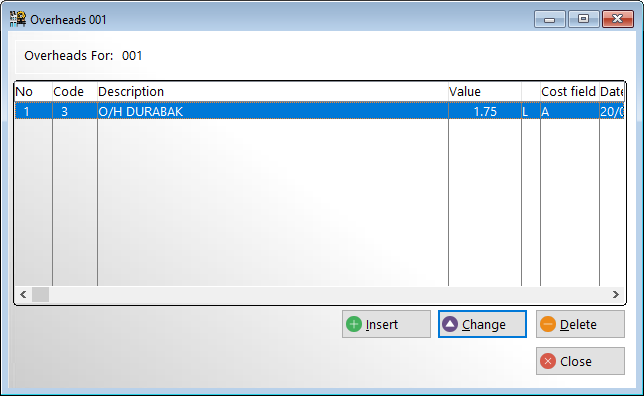
This will open a window showing the existing list of overheads. Click <Insert> to add a new overhead.
Press the <insert> button to add a new overhead. Press the <enter> key on the '0' code to open the window showing existing overhead parameters then select the desired overhead parameter.
Any number of overhead parameters may be applied to a finished goods item.
The overheads are applied in the order of entry.
The data for an overhead parameter may consist of a currency amount per unit depending on the setting of the mass switch, or a percentage.
If a currency amount is entered then that amount will be added to the unit cost.
There is NO inter-conversion from mass to volume or vice versa (since this is not relevant to finished goods items).
A percentage entry is applied to the cost including any overheads preceding that entry.
The total resultant value of all the overheads for the finished goods item are shown at the bottom of the window ("Overhead Total").