
Place an Order/Receive Raw Materials
Place an Order for Raw Materials
MENU OPTION: Order RMs
Add/Delete/Change raw material purchase orders by order number.
EDITING AN ORDER
You may enter several items on one order. The program will check each order item to ensure that you only enter items supplied by the same supplier on one order.
Order number can be installed as auto incrementing (configure/ORDER_AUTONUM=ON)
Supplier: Enter code of supplier or press <enter> to look up
Once supplier is entered you will only be allowed to enter materials from this supplier in the order.
Placed date: Defaults to current date.
Due date: Defaults to current date.
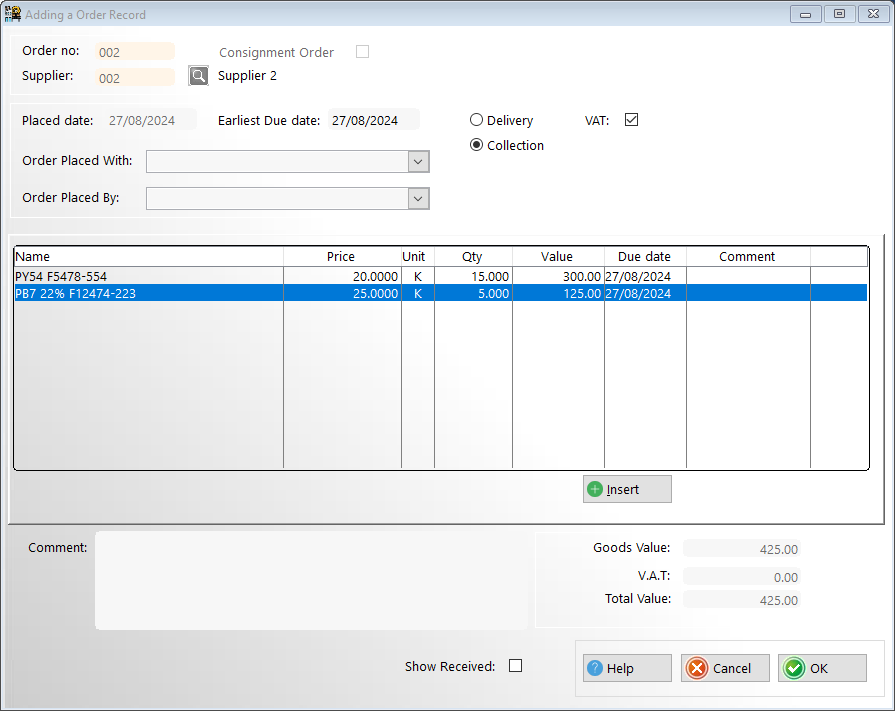
ORDER LINE ENTRIES
RAW MATERIAL CODE
Enter code if unknown then press enter key to look up in master file.
Order price defaults initially to current raw material cost in field 1.
If selected raw material is already mapped to the supplier for this order the latest supplier price is compared to the default price.
If found to be higher you will be prompted to allow this higher price to override default.
If selected raw material is not mapped to the supplier for this order you will be prompted to allow the material to be added to the current suppliers raw material supply list.
Viewing Outstanding Orders
MENU OPTION: Files > Raw Materials > Orders
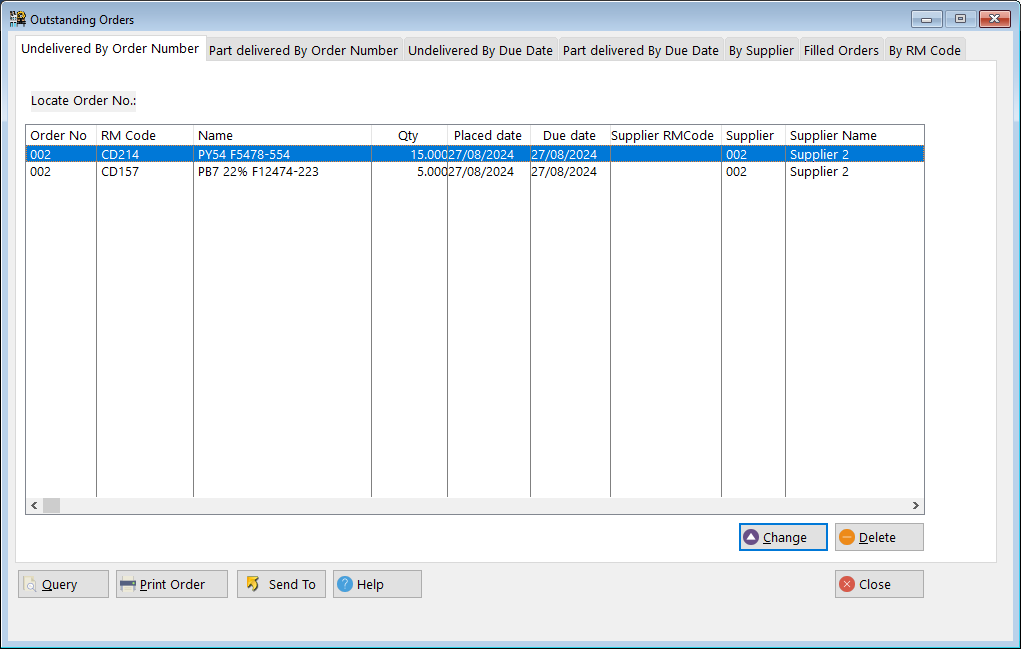
This window shows you a list of all your undelivered/outstanding orders, by order number.
You can also use the tabs at the top of the widow to see/sort by:
-
Partial delivery by order number
-
Undelivered by due date
-
Partial delivery by due date
-
Sort by Supplier
-
Sort by filled orders
-
Sort by Raw Material code
Receive Raw Materials
MENU OPTION: Files > Raw Materials > Receipts
Or use the easy secondary menu option: Receive RMs
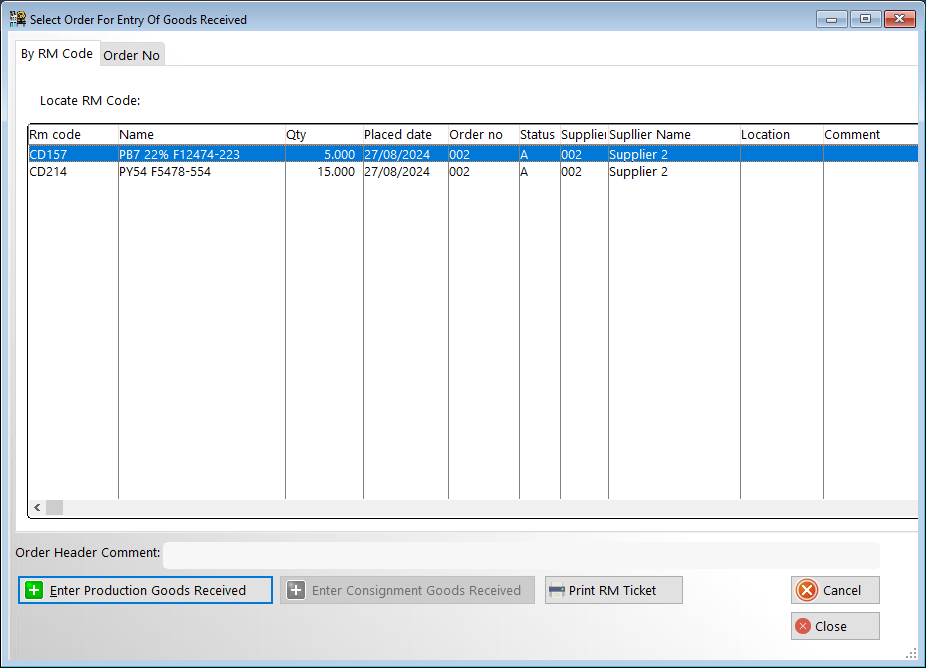
The individual items on each order are displayed
Select the item you wish to receive
The ordered item details will be displayed together with any receipts already entered for this item.
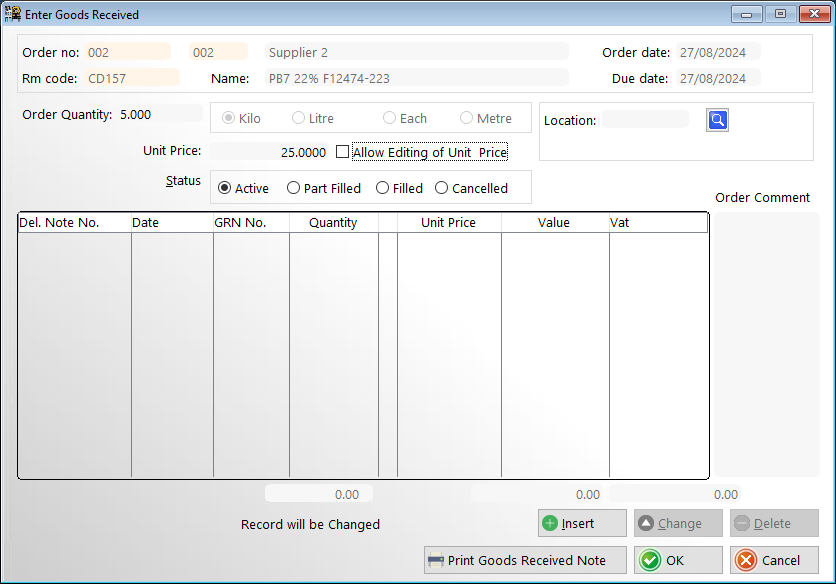
The price at which the item was ordered may be changed from here.
Received date: Default to current date and may be changed
Status:
Active: No receipts against this order
Part filled: Partial receipts against this order
Filled Order completed: Will be removed from system
Cancelled Order: Will be removed from system
GOODS RECEIVED AGAINST THIS ORDER
Part receipts:
Any number of receipts may be entered for each order item. The total quantity received will be displayed at bottom of screen.
When the total quantity received is equal to the quantity ordered, the order item will be flagged as 'filled' and will no longer appear on the table of outstanding order items.
Enter the following data for each receipt
GRN No.: Goods Received note number
Batch No.: Goods received batch number
Rcvd. QTY.: Quantity received for this order
Value: Will be automatically calculated from cost and Quantity received
VAT: Will be automatically calculated from cost and Quantity received
UPDATING RAW MATERIAL STOCK FILE ON RECEIPT OF GOODS.
The stock for the received material will automatically be updated.
If a previous receipt is edited the stock will be adjusted accordingly.
UPDATING RAW MATERIAL COSTFILE ON RECEIPT OF GOODS.
The setting of the switch 'GRNRMCOST ' from the 'Configure > Switches' Menu controls this feature.
If it is set to a value from 1 to 4 it will automatically allow updating of master file costs in the cost field corresponding to the set value. (Usually 1)
If the 'MOVING_AVERAGE' switch is set then the moving average cost will be calculated and placed into the cost field specified by this switch (usually 4)