
The Query by Example Function
Can be found on selected browse lists within the application
The Query Button provides a way for you to apply a dynamic (run-time) filter to the list on which it appears.
In other words, you can query the data that the list deals with and display the results of the query in the Browse Box list.
When you click the Query button, you will be presented with the following screen:
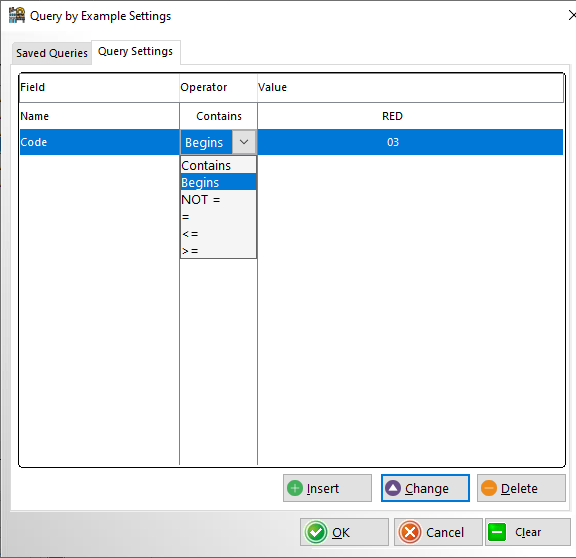 |
The first column: 'Field' deals with the columns in the list we want to query. Notice that when you select to insert there is a 'drop box' from which you must make a choice (all of the columns in the list will be here).
The second column is where you will select the 'operator' that you wish to use, these operators define how the list will be filtered according to the 'value' that you enter in the last column.
The 'Value' column is where you will enter the criteria that you wish the list box to be filtered by.
So, if you wanted the list to show only records where the code begins with 'A...' then you would select: 'Code' from the drop list in the field column, '=' as your 'Operator' and then you would type: A* as the 'Value'.
The asterisk (*) is what we call a wildcard, here is a list that illustrates how they work:
|
After providing the necessary information to the Query screen, click 'OK'.
This will filter the list and return you to it, should you click the Query button again you will find that your query is still there, this is handy if you want to apply the same query to different sort orders (tabs on the screen). It also means you can refine your search if the results where not what you had intended.
To unfilter the list and display all of the records you must click: 'Clear' on the Query screen, this will clear your query and return you to the unifltered list.